How to Make a TikTok Slideshow With AI
Turn one product photo into a TikTok Photo Mode slideshow with AI. How to generate the images, order the slides, and publish — even without Shoppable Photos.
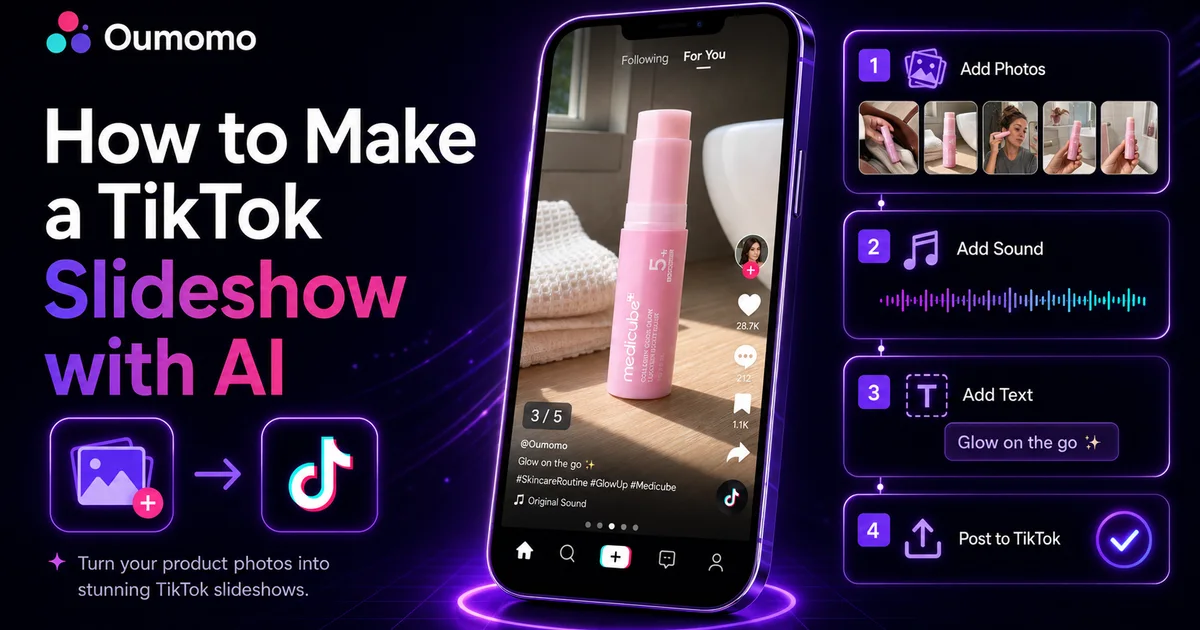
TikTok slideshows give sellers a quick way to turn product images into content for the For You feed and search. Sellers with access to TikTok Shop's Shoppable Photos can also tag products in those posts.
You do not need a full photoshoot to create one. With Oumomo's TikTok Slideshow Maker, you can upload one clear product photo and generate multi-angle views, clean-background images, lifestyle scenes, and poster-style slides for TikTok Photo Mode.
Below, you'll learn how to generate the images, decide what belongs on each slide, and prepare content even if your account does not have Shoppable Photos yet.
What is a TikTok slideshow?
A TikTok slideshow is a swipeable post made from multiple still images. TikTok calls Photo Mode format. Creators also call it a "photo carousel" or "slideshow." Viewers move through the images at their own pace, with optional music, text, filters, and stickers.
TikTok Shop sellers will run into two versions of the format:
- Regular Photo Mode is a standard image post without a product link.
- Shoppable Photos is a Photo Mode post with one or more TikTok Shop products tagged for purchase.
Shoppable Photos remains a beta feature for selected sellers in some markets. If your account cannot tag a product in a photo post, you can still create and publish regular slideshows while building a reusable image library.
How to make a TikTok slideshow with AI
Start with a good product photo
Choose a clear, high-resolution image in which the product is easy to identify. A white or uncluttered background works best because it gives the AI a clean reference for shape, color, packaging, and small details.
Before uploading, check that:
- The full product is visible.
- Logos, labels, and important details are readable.
- The image is not a collage or screenshot.
- The photo accurately represents the item customers will receive.
- The product is shown from clear angles, with all relevant details clearly visible.
AI can create new settings and angles, but the source image still determines how faithfully the product is reproduced.
Upload it to Oumomo
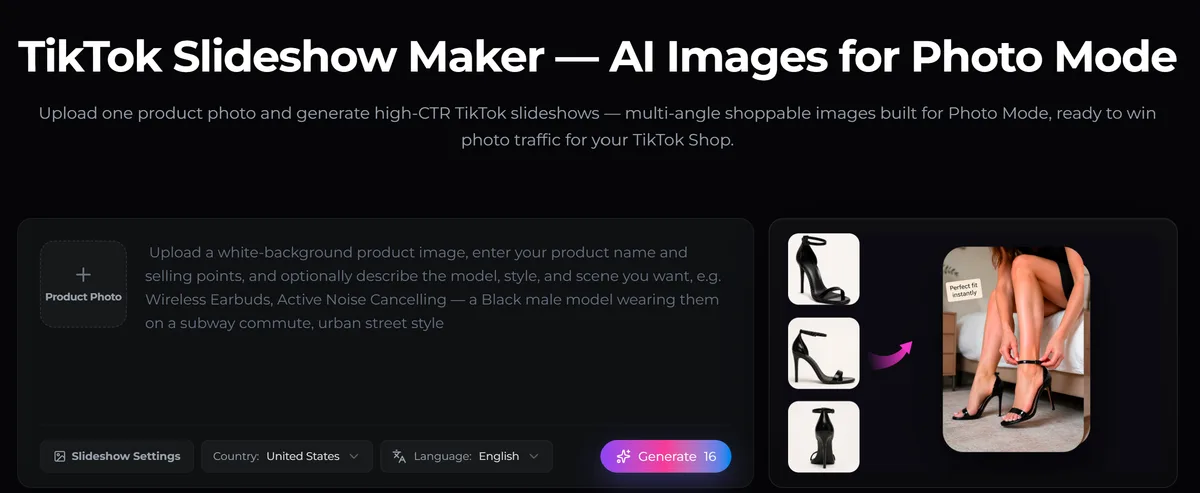
Open the Oumomo TikTok Slideshow Maker and upload your product image. Add the product name and its most important selling points. You can also describe the model, visual style, or scene you want.
For example:
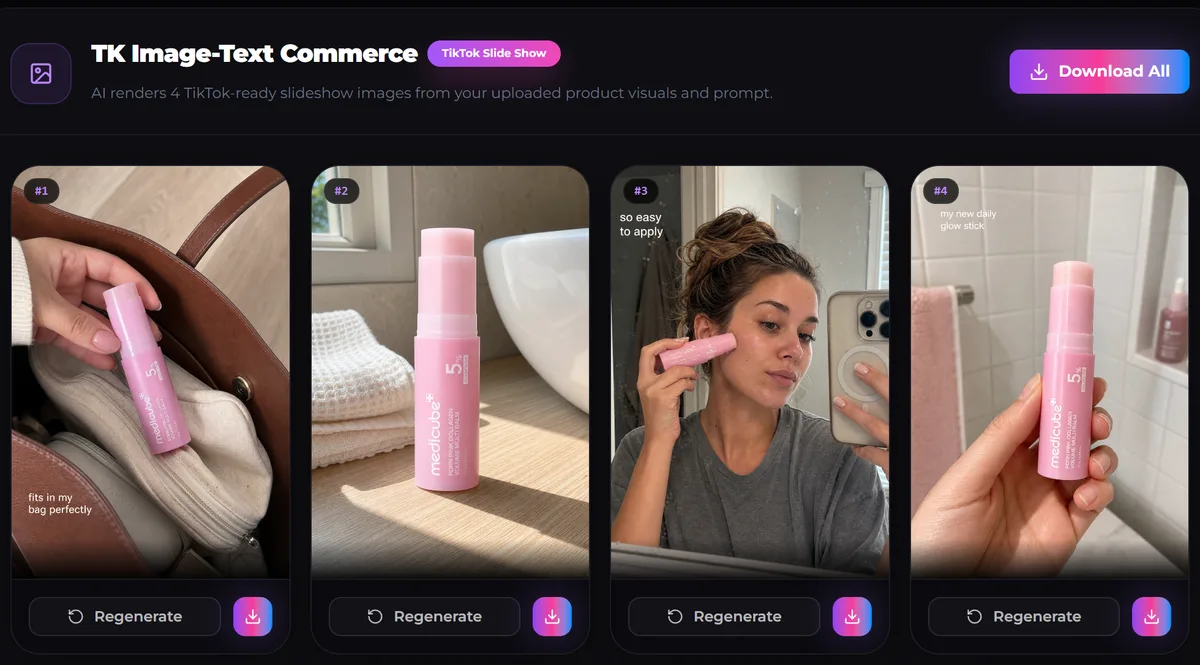
Pink collagen multi balm stick for convenient, on-the-go skincare. A woman keeps it in her handbag and applies it to her cheeks as an everyday essential for a radiant glow.
The more concrete the prompt is, the less room the generator has to wander away from your product or audience.
Choose the country and language
Set the target country and language to match your TikTok Shop market. This matters when the slideshow includes poster text, product benefits, or localized creative cues.
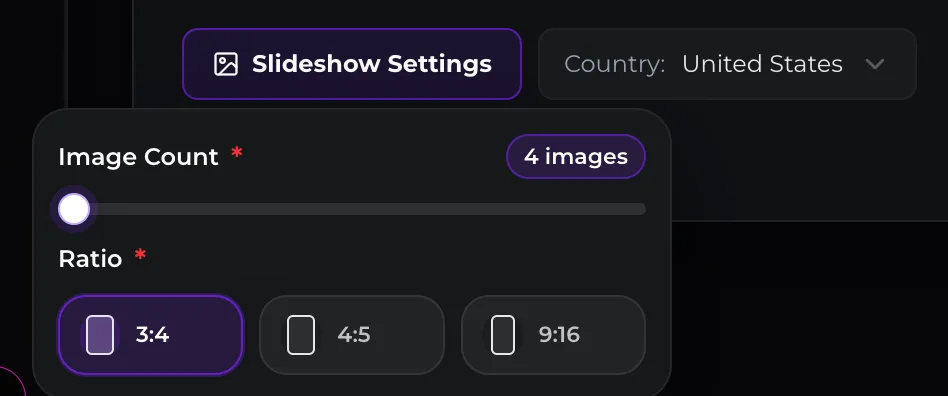
In Slideshow Settings, choose how many images to generate (4–12) and select your preferred image ratio.
Keep on-image copy short. One clear benefit per slide is easier to scan than a paragraph of sales text.

Generate the images, then check them closely
From the source photo, Oumomo can create:
- Multi-angle product views
- Clean-background images
- Lifestyle scenes
- Close-ups of key features
- Poster-style promotional layouts
Do not assume every generated image is usable. Check the product's shape, color, accessories, labels, and written claims. If a slide could give a buyer the wrong idea about what will arrive, cut it.
Put the slides in an order that makes sense
A folder of attractive images is not a finished slideshow. The order matters. Each slide should answer the next question a shopper is likely to have.
Try this five-slide structure:
- Open with the strongest result, problem, or visual contrast.
- Show the product clearly, without much clutter.
- Explain the main reason someone would want it.
- Add a useful detail, such as the material, size, packaging, or a close-up.
- End with a simple next step.
TikTok requires at least two images for Shoppable Photos. The recommended count changes between markets. Some official materials suggest 2 to 5 images, while TikTok's cross-border guide recommends 5 to 7. Five slides is a sensible place to start, but it is not a magic number. Test shorter and longer posts and compare the views, swipes, clicks, and sales.
Publish in TikTok Photo Mode
To post manually:
- Open TikTok and tap +.
- Select Photo.
- Upload your images in the intended order.
- Add a caption, music, and any final text.
- If your account has Shoppable Photos access, tap Add link or Tag products and select the relevant product.
- Review the post and publish.
An example: a slideshow for a portable blender
Say you sell a compact portable blender. The carousel might look like this:
- Slide 1: Show the result. Use a finished smoothie on a desk with the message, "Breakfast in 30 seconds?"
- Slide 2: Introduce the product. Use a clean product shot with, "Portable blender for work, travel, and the gym."
- Slide 3: Put it in context. Show the blender inside a tote bag with, "Compact enough to carry anywhere."
- Slide 4: Explain the use case. Add a close-up of the cup and lid with, "Blend, drink, and go."
- Slide 5: Give the next step. Show the product with ingredients and add, "Tap to see colors and current availability."
This order works because the shopper sees the outcome first. The next four slides explain how the product fits into everyday life and what to do next.
Manual product photography vs. an AI slideshow maker
Manual product photography
Manual photography starts with the physical product, a camera, lighting, and a location. A shoot often takes hours or days, and the creative options depend on what the team planned and captured that day.
It is the better choice for hero images and brand campaigns where every detail needs tight control. The trade-off is higher production cost and slower iteration.
AI slideshow generation
AI slideshow generation starts with one clear product photo. It can produce several scenes, angles, and layouts for review within minutes, making it useful for quick concepts and content variations.
The trade-off is accuracy. Every generated image needs a human check for product shape, color, packaging, labels, and accessories.
You can also combine the two. Use an accurate hero image from a real shoot, then use AI to try more scenes and layouts without booking another session.
TikTok slideshow tips for sellers
- Make sure the first slide works without sound. A viewer should understand the product or payoff right away.
- Let the images do some of the explaining. Dense text on every slide defeats the point of the format.
- Check that the color, proportions, packaging, and accessories stay consistent from one image to the next.
- Give every slide a job. Add a new angle, detail, benefit, or use case instead of repeating the cover.
- Use short text with enough contrast to read on a phone.
- Only tag products that the viewer can actually see in the post.
- Compare different hooks, slide orders, and image counts. Your click and sales data will be more useful than a universal formula.
What to do if you do not have Shoppable Photos yet
You can still create regular Photo Mode posts and prepare image sets for each product. It is useful practice for your team, and you will have approved images ready if product tagging appears on the account later.
Regular slideshows will not necessarily unlock the beta or improve "account authority." TikTok has not promised either outcome. The benefit is much more practical: you can learn which images and messages get attention before the product-tagging option arrives.
Frequently asked questions
How many images can a TikTok slideshow have?
TikTok Photo Mode can support a larger carousel, but Shoppable Photos requires at least two images. For a product post, five focused slides are a useful starting point. Test the count against your market and account data.
Can I use AI-generated images on TikTok Shop?
TikTok's seller guidance allows AIGC-assisted product images when they are clear, relevant to the item, and compliant with platform rules. Review every output for accuracy and follow the current disclosure and content policies in your market.
What size should TikTok slideshow images be?
Use a vertical 9:16 layout so the image fills the mobile screen cleanly. Keep important text and product details away from interface elements near the edges.
Can I turn the same product photo into a video?
Yes. After creating the slideshow, you can use the same source asset with Oumomo's Viral Remake or Viral Script Generator to develop a video concept with a consistent product look.
How do I know whether I have Shoppable Photos access?
Create a new photo post in the TikTok app. If you can add or tag a TikTok Shop product before publishing, your account has access. Availability may differ by market and account.
Make your first TikTok slideshow
Start with one accurate product photo and build a five-slide version. Then look at every image before you publish. More slides will not rescue a weak idea. A short, coherent sequence is easier for shoppers to understand.
Use Oumomo's TikTok Slideshow Maker to generate multi-angle, clean-background, lifestyle, and poster-style product images for your next Photo Mode post.
This guide was contributed by Oumomo, who build AI video and image tools for TikTok Shop sellers.
FREE WHITEPAPER
Marketing in the Agent Era
All 13 chapters public — no email wall. Includes an original dataset on the agent-readiness of 50 cross-border DTC brands.
Read it free →